


Sonos
4.321.54K Reviews
App Specs
- Version
- Varies with Device
- Updated On
- License
- Free
- Downloads
- 10,000,000+
- Developer
- Sonos, Inc
- Categories
- Music & Audio
- Platform
- Android, iOS
Screenshots
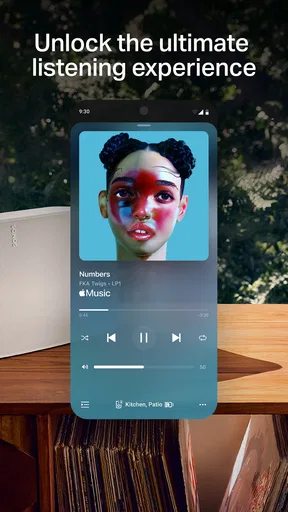
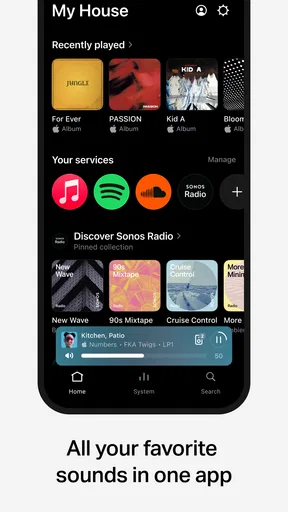
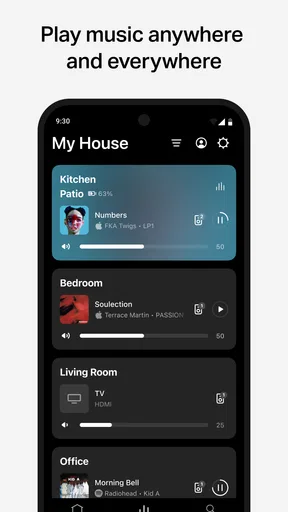
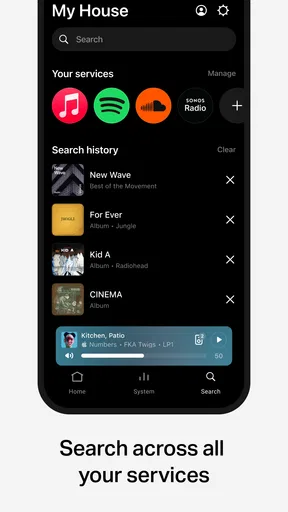
 Analysis by AppCompare
When music is spread across rooms, the biggest difference between a pleasant listening setup and a frustrating one is often the connection behind it. I find that the Sonos app is most useful when I treat it as a shared control point for compatible speakers, rather than as just another place to browse songs. That distinction matters: its appeal depends on having Sonos equipment and a reliable network, while someone who only wants to play music from a phone may be happier with a regular streaming app.
Sonos, Inc. makes this free music and audio app, which is rated for Everyone. Its 4.2 average from around 328,000 ratings and more than 10 million installs suggest it has found a broad audience, though those figures don’t tell you whether it suits your home. I’d judge it by a more practical question: do you want to manage music across Sonos speakers, and are you comfortable with the network playing a central role?
When the network is part of the listening experience
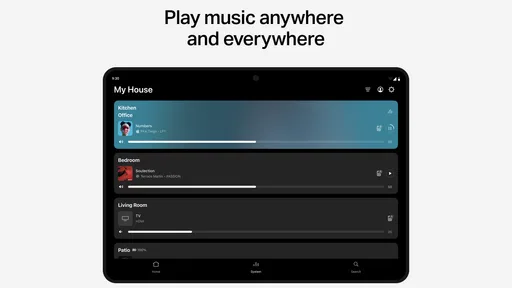
The app’s network dependence is most noticeable when I group rooms, change what is playing, or adjust shared playback. Those controls are convenient because I don’t have to visit each speaker, but they also make a stable connection part of the everyday experience. If a room is slow to respond, I would first check whether the speaker and phone are connected to the expected home network before assuming the app itself is the problem.
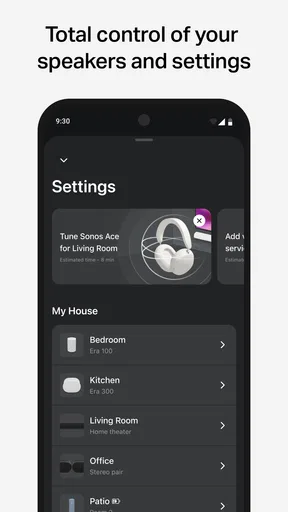
A useful habit is to make room names clear during setup. “Kitchen” and “Bedroom” are easier to act on than vague labels when I’m trying to group speakers quickly or lower the volume in one space without changing another. This small bit of housekeeping pays off most when the app is being used while I’m busy, rather than when I’m sitting down to explore its menus.
Using it while moving around
On a phone, the app works best as a remote for the home audio system: I can make a quick adjustment while cooking, tidying, or getting ready without interrupting what I’m doing. That is a different job from using a streaming app to listen through the phone’s own speaker or headphones. If I’m heading out, I’m more likely to use my usual mobile music app; if I’m moving between rooms at home, Sonos’ shared controls are the reason to open this one.
That difference is worth considering before installing it. The app is not a replacement for every music player simply because it handles music. Its strongest case is a household built around Sonos speakers, especially when more than one person wants to control playback or when sound needs to follow the activity from one room to another. Without that setup, its central advantage is harder to use.
When playback or control falters
If a command doesn’t take effect, I’d avoid tapping it repeatedly at first. Check the selected room, confirm that the phone is on the home network, and give the system a moment to respond. It is easy to send a volume change to the wrong room when several are grouped, and a brief pause can prevent a string of conflicting commands. Clear room names and deliberate grouping make recovery less confusing.
Worth Reading Before You Choose

Flipboard Shows What News Apps Must Do Beyond the Feed

Switching to Android Auto Means Rethinking Your Driving Routine

Google Calendar Makes a Crowded Week Easier to Manage

Ludo King Makes the Most of the Minutes Between Plans

Baby Panda World Brings Quick Play to Modern Phones, but Its Game Library Feels Busy

ESPN’s Live Game View Makes Following Close Games Easier
There is a trade-off here: a connected multi-room system feels wonderfully unified when everything is responding, but it introduces more points to check than playing one track directly from a phone. The app is most appealing to people willing to do that small amount of setup and troubleshooting. If I want music with no interest in managing speakers or a home network, a standalone streaming player is the simpler choice.
Keeping everyday use sensible
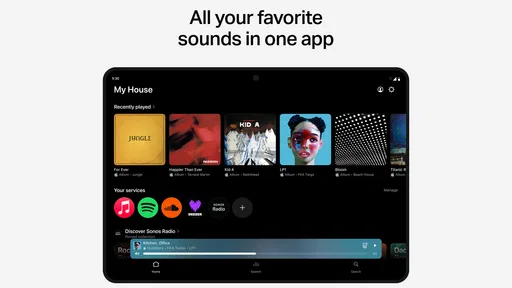
I’d also keep the way I use the app focused. Choose a service you already use, set up the rooms you actually listen in, and save more elaborate grouping for occasions that need it. That keeps routine playback quick and reduces the chance of starting music in a room by mistake. When several services are available in the app, using a familiar one can make the transition less disruptive than rebuilding a music collection around a new interface.
For a typical evening, I might start music in the kitchen while making dinner, then add the living room when friends arrive. The practical benefit is not just filling more space with sound; it is controlling that change from one place without restarting the evening’s playlist in each room. For quieter parts of the day, keeping playback confined to one room is just as useful, and avoids treating multi-room audio as an all-or-nothing setting.
Getting Started with Sonos
Alright, first things first. Setting up the Sonos app was a breeze. I downloaded it from the App Store, and within minutes, I was ready to rock and roll. The app guides you through the process of connecting your speakers, and even if tech isn’t your thing, it’s super straightforward. The app’s user interface is slick and intuitive, making it easy to navigate through its myriad of features.
Your Music, Your Way
One thing I absolutely love about Sonos is the way it lets you customize your listening experience. Whether you’re streaming from Spotify, Apple Music, or even your own library, Sonos has got you covered. The app supports a wide range of services, and switching between them is smooth as butter. You can create playlists, queue up songs, and even control the volume across different rooms with just a few taps. It’s like magic!
The choice between the app and a service’s own player comes down to what I’m trying to do. A service app can be the more direct route when I only want to listen on one device; Sonos makes more sense when I want to steer music to its speakers and coordinate playback across rooms. I’d start with the music service I already know rather than spending time moving playlists around. A quick queue can also be more useful than building a new playlist for a one-off dinner or a short stretch of chores.
There’s a social wrinkle too: a shared speaker system can be easier for guests to enjoy when the controls are familiar and the room names make sense. I’d still be deliberate about who is changing playback, especially if several people have access to the system. For a household that prefers each listener to use personal headphones and separate accounts, this shared-room approach may feel less natural than individual streaming apps.
Room-Filling Sound
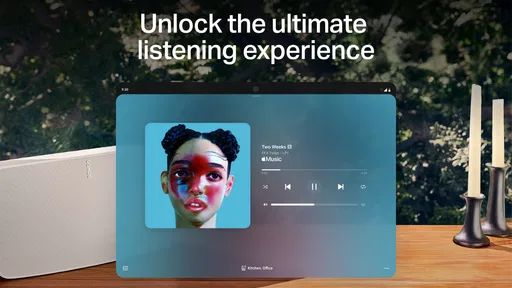
Now, let’s talk about the real star of the show: the sound quality. I’ve tried playing everything from pop to classical, and the sound is just phenomenal. The app allows you to adjust the EQ settings, so you can tweak the bass and treble to your heart’s content. Plus, with the multi-room audio feature, you can sync your music across the house, making it perfect for parties or just jamming out while you do chores.
One practical point is to adjust sound for the room and the moment rather than chasing a single “best” EQ setting. A bass-heavy mix that feels fun while cleaning might be distracting during a quiet meal. I’d make a small change, listen for a while, and then decide whether it helped; rapid adjustments make it harder to tell which setting actually improved the sound. The app gives you control, but your room, speaker placement, and listening habits still shape the result.
Multi-room playback also doesn’t have to mean every speaker plays everything all day. I’d group rooms for a gathering or for moving between spaces, then return to a single room when the house is quieter. That keeps the feature useful without making a whole-home group the default. It is a small workflow choice, but it helps prevent music from continuing in a space where nobody is listening.
Smart Features Galore
Another cool aspect of the Sonos app is its smart features. You can connect it with your voice assistants, like Alexa or Google Assistant, and control your music hands-free. Trust me, asking Alexa to play your favorite song while you’re cooking is a game-changer. Plus, the app integrates seamlessly with your smart home devices, adding another layer of convenience.
Voice control is most helpful when my hands are occupied, but I wouldn’t make it the only way to manage playback. A spoken request can be convenient for a familiar task; the app is better when I need to check which room is selected, browse options, or make a careful volume adjustment. Keeping both approaches available gives me a fallback when speech is inconvenient or when I want more precise control.
I’d also think about the people sharing the home. Some may prefer a voice request, while others would rather use the phone, and a common room setup can accommodate both habits. The trade-off is that voice control depends on the assistant and connected setup working as expected, so it is a convenience layer rather than a reason to choose the system on its own.
Design and Usability
I’ve got to give props to the design team. The app looks sleek and modern, with a minimalistic vibe that I really dig. The layout is clean, and everything is where you expect it to be. Navigating through the app feels natural, and it doesn’t bombard you with unnecessary features or complicated menus. It’s user-friendly, which is a big win in my book.
For a new user, I’d explore the app when I have a few quiet minutes rather than during the first minute of a busy evening. Find the room controls, try selecting a familiar service, and learn how to tell whether playback is limited to one space or shared. That short orientation makes later use feel much less like troubleshooting, especially when someone asks for a quick change while music is already playing.
The app’s simplicity is welcome, but a clean interface cannot remove the learning curve of a multi-room system. The key question is often not where a button is, but which room or group the control currently affects. I’d build the habit of checking that selection before changing playback. It’s a small pause that helps avoid the most common kind of user error: controlling the right music in the wrong place.
Who will get the most from it
I’d recommend trying it if you already own Sonos speakers or are planning a home setup where music needs to move between rooms. It is especially suited to people who want one place to select music, adjust sound, and manage shared playback instead of opening separate controls for each speaker. The free price of the app is appealing, but the overall value depends on whether you will use the Sonos hardware and its room-based approach.
I’d skip it as a primary music app if you mainly listen on headphones, use a phone as your only speaker, or want a player that works independently of a home audio system. In those situations, your existing streaming app is likely more direct and less complicated. Likewise, if your home network is unreliable or you do not want to spend time naming rooms and learning groups, the convenience of central control may not outweigh the setup.
Compared with the usual alternatives in music and audio, Sonos is less about replacing a music service and more about coordinating how that service plays through a connected home. A streaming app is usually the better choice for personal listening and portable use; Sonos is the more relevant option when the destination is a set of compatible speakers in different rooms. I see that as a useful distinction, not a flaw, as long as you choose it for the job it actually does.
The app has been available since June 1, 2020, and its 21,000 reviews offer more context than its average alone, though I would still weigh your own setup more heavily than any public score. For me, the deciding factor is whether shared room control solves a real daily problem. If it does, the app can make listening around the home feel much more coordinated; if it doesn’t, a regular player will likely feel simpler.
Final Thoughts
So, what’s the verdict? If you’re a music enthusiast looking for a seamless and high-quality listening experience, the Sonos app is a must-try. It’s packed with features that cater to both casual listeners and audiophiles alike. While the price tag on some Sonos speakers can be a bit steep, the app itself is free and worth every second of your time. It’s a fantastic way to elevate your music game, and I’m totally here for it. Give it a shot, and let me know what you think!
Ready to dive into the world of limitless music? Download the Sonos app and start your audio adventure today!
Pros
- Seamless multi-room listening experience.
- High-quality sound with deep bass.
- Intuitive app interface for easy control.
- Wide range of streaming service integrations.
- Regular updates enhance functionality.
Cons
- Expensive compared to similar options.
- Requires stable Wi-Fi for optimal use.
- Limited Bluetooth support.
- Setup can be complicated for beginners.
- No built-in voice assistant on some models.
FAQs for Sonos
What is Sonos and how does it work?
Sonos is a wireless home sound system that allows you to connect multiple speakers throughout your home. You can control these speakers using the Sonos app on your smartphone or tablet. The app lets you stream music, podcasts, and other audio content from various services, providing a seamless listening experience.
Is Sonos compatible with music streaming services?
Yes, Sonos is compatible with a wide range of music streaming services, including Spotify, Apple Music, Amazon Music, and more. You can access these services directly through the Sonos app, making it easy to play your favorite music and playlists from any room in your home.
Can I use Sonos with voice assistants?
Sonos is compatible with popular voice assistants like Amazon Alexa and Google Assistant. You can control your Sonos system using voice commands, allowing you to play music, adjust volume, or skip tracks without needing to use your hands. This feature enhances the convenience and functionality of your Sonos system.
Do I need an internet connection to use Sonos?
Yes, an internet connection is required to use Sonos. The system relies on Wi-Fi to stream audio content from different services. Additionally, the Sonos app needs internet access to communicate with the speakers and manage your music library. A stable connection ensures optimal performance.
Is it possible to expand my Sonos system?
Absolutely, one of Sonos's key features is its scalability. You can easily add more speakers to your system over time. Whether you want to enhance audio in a single room or equip your entire home with speakers, Sonos allows for flexible expansion, ensuring a consistent and high-quality audio experience throughout your space.


